Billing
Subscription
The Subscription page (/subscription) is split into a Current Plan banner and a plan-comparison grid below it.
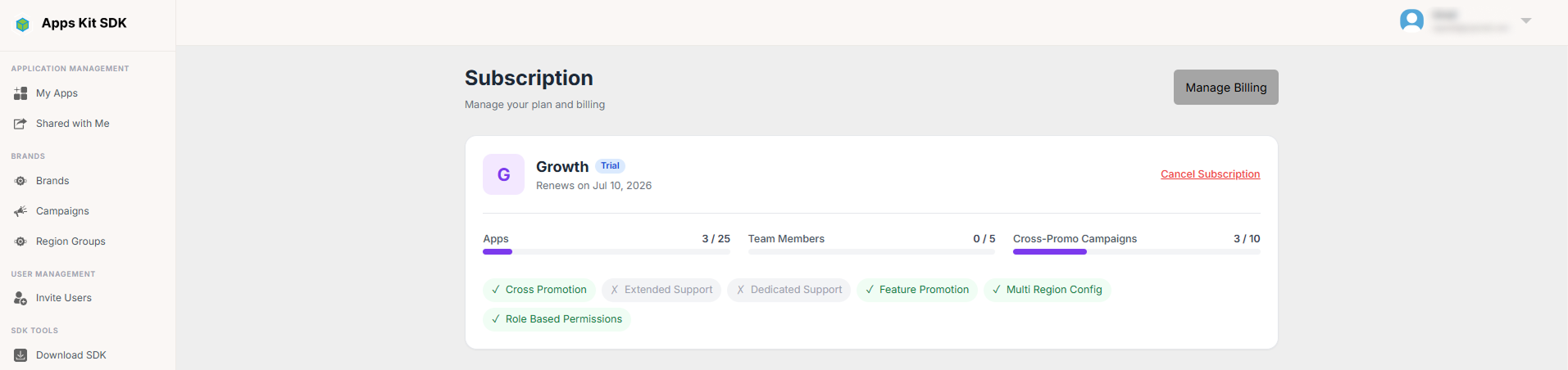
Current Plan banner. Shows your plan name and a status badge — Active (subscribed), Trial, On Hold, Expired, or "No Plan" (unsubscribed) — plus, if applicable, a renewal or cancellation date ("Renews on…" or "Cancels on…," depending on whether you've requested to cancel). If you have an active subscription, a Cancel Subscription link is shown (it cancels at the end of the current billing period rather than immediately); if you've already requested cancellation, this becomes a Resume Subscription button instead. A Manage Billing button in the page header (visible only with an active subscription) opens your Stripe billing portal in a new tab, where you manage payment methods and invoices directly with Stripe.
Below that, three usage meters show your current consumption against your plan's limits — Apps, Team Members, and Cross-Promo Campaigns — each as a progress bar that turns yellow past 70% used and red past 90%. A row of feature badges (✓ enabled / ✗ disabled, e.g. Cross Promotion, Feature Promotion, Multi Region Config, Role Based Permissions) shows which capabilities your current plan unlocks.
Plan comparison grid. Below the banner, every available package (Free, Starter, Growth, Pro, etc., as configured on the backend) is shown as a card with its price, billing period, and a feature list built from that plan's limits (max apps, max team members, max cross-promo campaigns, included monthly ad impressions, and grace period in days) plus any named features it includes. A "Most Popular" badge marks the plan flagged as default; "Your Plan" marks your current one. The action button on each card reads Subscribe (no current subscription), Current Plan (disabled — this is the one you're on), Switch to this Plan (a paid upgrade), or Downgrade (moving to a free/lower-cost plan).
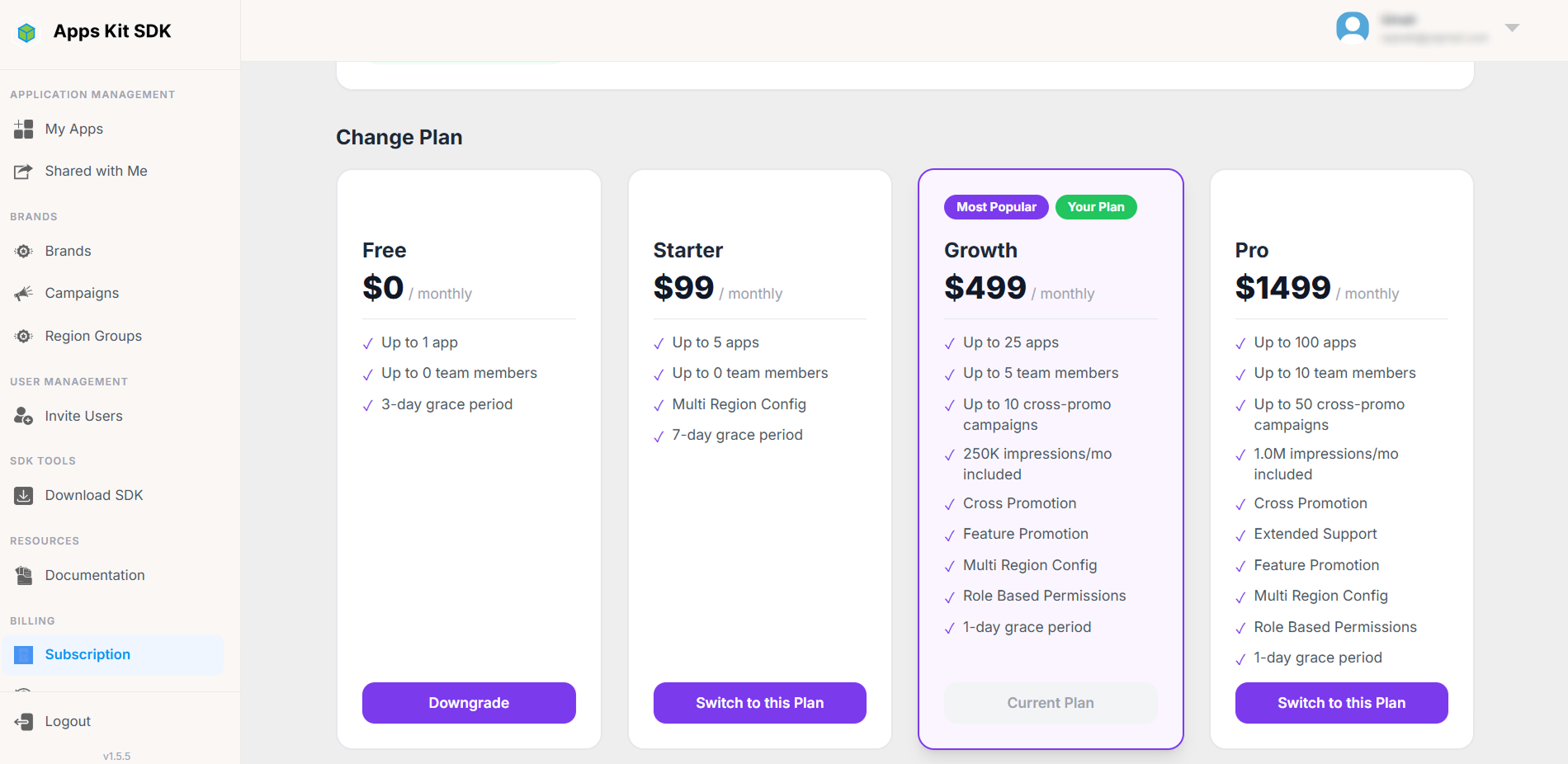
Choosing a plan when you have no active subscription creates one and may redirect you to Stripe to complete payment; choosing a different plan when you already have an active subscription changes your plan in place (no separate Stripe redirect for plan switches).
Payment History
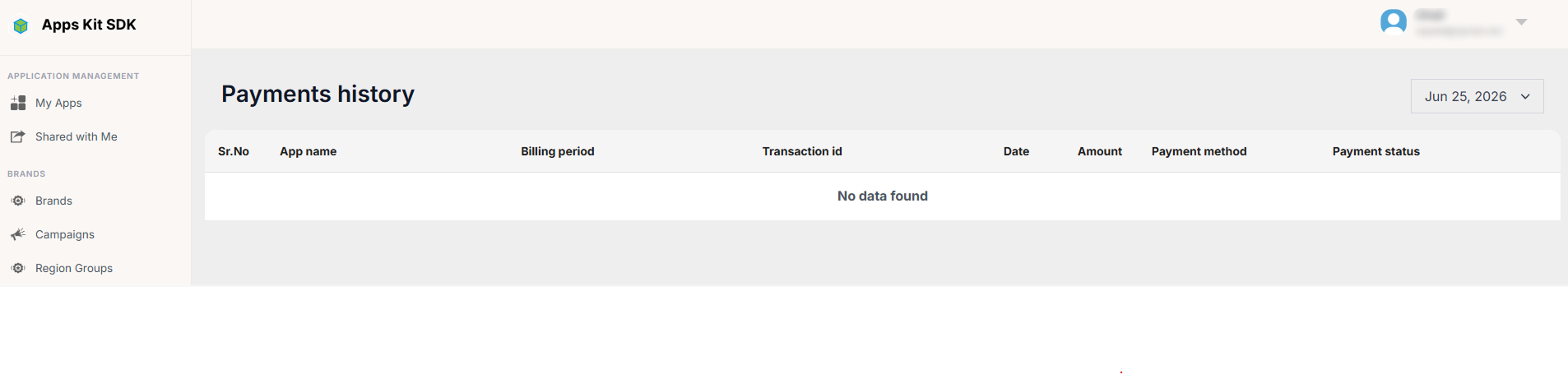
The Payment History page (/payments) is a straightforward table of past transactions: app, billing period (start–end dates, or "----" if not applicable), transaction ID, date, amount, payment method (card brand icon plus brand name, last 4 digits, and cardholder name), and payment status. A date-range filter at the top of the page narrows the list to a specific window.