Getting Started
Creating an Account
New users sign up from /register. The screen is split into a marketing left panel (an animated "Welcome to Apps Kit SDK" headline, a one-line product description, and three animated stat cards — Higher Revenue, Match Rates, Crash & ANR — which are decorative marketing copy, not data about your account) and a sign-up form on the right.
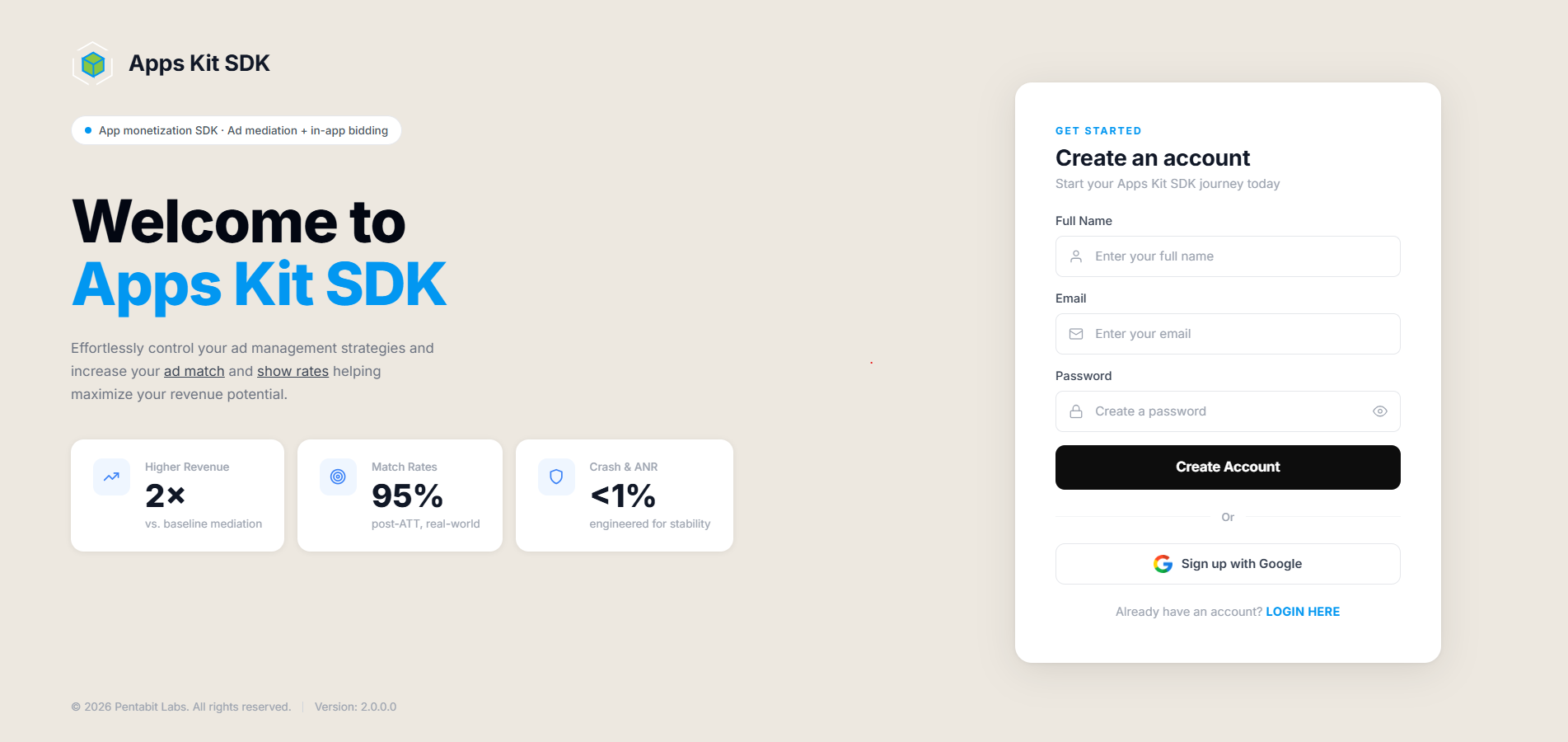
The sign-up form collects:
- Full Name — required.
- Email — required, must be a valid email address.
- Password — required, minimum 8 characters, and must contain at least one uppercase letter, one lowercase letter, and one special character (e.g.
!@#$%^&*).
Clicking Create Account creates a Firebase email/password account, immediately fires off a Firebase email-verification email, and then registers the user against the Apps Kit SDK backend (POST /oauth/login with oauthProvider: "email"). After this you're redirected to /login — sign-up does not log you in automatically, and you can't sign in until you've verified your email (see Logging In below).
Alternatively, Sign up with Google uses a Firebase Google popup (signInWithPopup) and registers the account with oauthProvider: "gmail". Google sign-ups don't need separate email verification and land you straight on / (My Apps) or /users depending on account type.
A "Already have an account? LOGIN HERE" link returns to /login.
Logging In
The Login screen (/login) uses the same two-panel layout as Register: a marketing panel on the left and the actual sign-in card on the right.
LOGIN_SCREEN_IMAGE
The login form has:
- Email — required, valid email format.
- Password — required.
- A show/hide (eye icon) toggle on the password field.
- Continue — the submit button, disabled until the form is valid.
- Remember me — a checkbox that, when checked, saves your email address (not your password) to the browser so it's pre-filled next time you visit.
- Forgot Password? — links to
/forget-password. - A "Login with Google" button — same Firebase popup flow as Google sign-up, but for existing accounts.
- "New User? SIGN UP HERE" — links to
/register.
Signing in with email/password additionally checks that your Firebase account's email is verified; if it isn't, you'll see a "Please verify your email first." message and won't be logged in. After a successful login (either method), you're routed to / (My Apps) if your account is a regular user, or /users if it's an internal/admin account.
Forgot Password
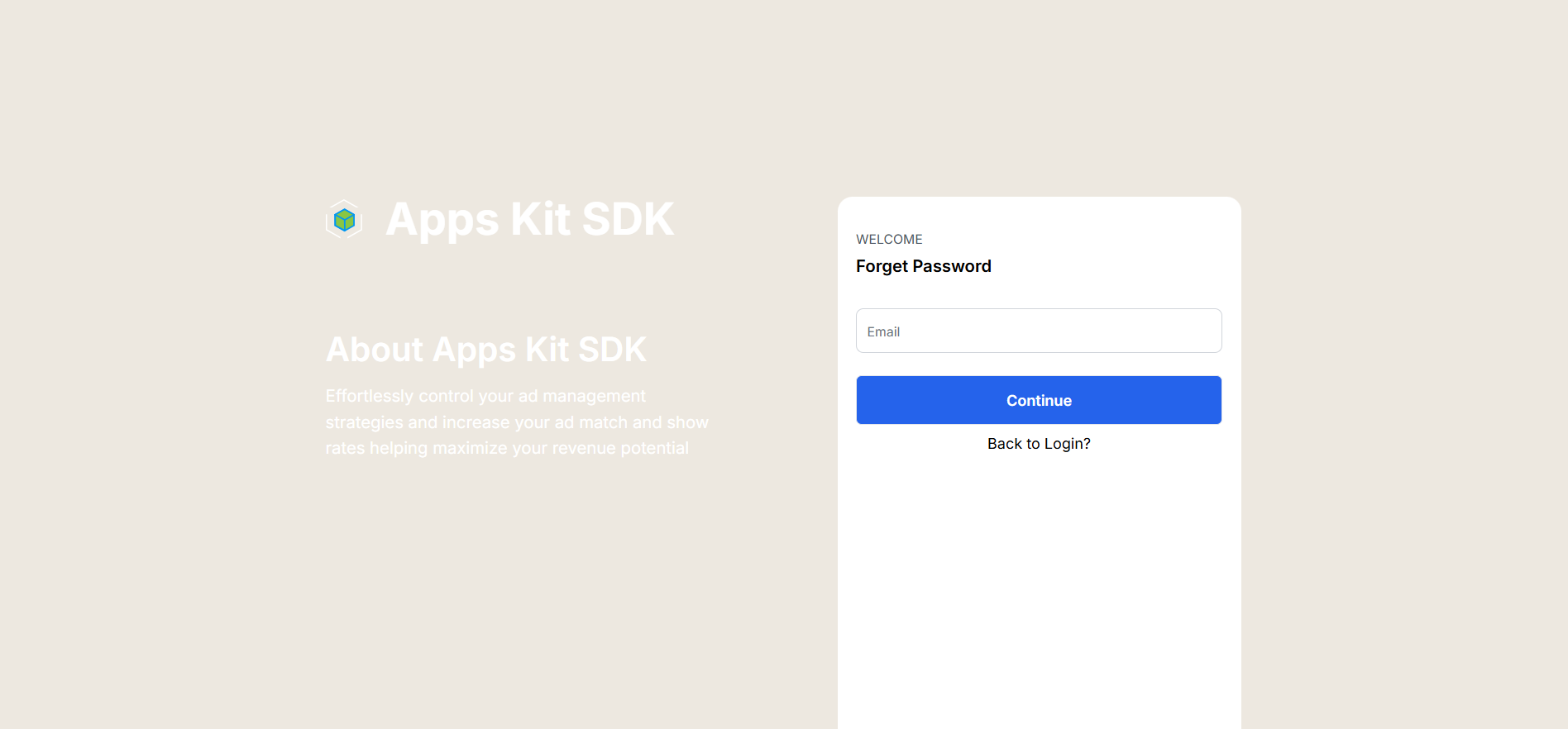
/forget-password is a single-field form (just your email address). Submitting it calls Firebase's sendPasswordResetEmail — there's no in-Portal password reset flow; you receive a reset link by email and a toast confirms "Password reset email sent. Please check your inbox," after which you're returned to /login. A "Back to Login?" link is also available directly on the page.
The Top Navigation Bar
Once logged in, every page (except the auth screens) shows a top navbar with your account menu on the right, and — on the My Apps page only — a notification bell next to it.
Account menu. Clicking your avatar/name/email in the top-right opens a dropdown with:
- A "My Account" row representing your own account (a blue dot marks it as the active context when selected).
- A "Shared With Me" section — this only appears if you've accepted at least one sharing invitation from another team. It lists each inviter by name, email, and avatar. Clicking one of these switches your entire Portal context to that account (technically: dispatches
switchAccount()), so everything you see afterward — My Apps, Brands, Campaigns, etc. — reflects their resources, filtered by whatever permissions they granted you. - A footer that changes depending on context: if you're viewing your own account, it shows a "Profile" link. If you're currently viewing a switched/shared account, it instead shows a red "Exit → Shared With Me" button, which drops you back into your own account and navigates to the Shared with Me page.
When you're viewing a switched account, the navbar also displays a small "Shared" badge next to the displayed name, so it's always visible whose data you're looking at.

Notification bell. This only appears on the / and /apps routes (i.e., the My Apps dashboard) — it is not present elsewhere in the Portal. Its badge count is the total number of notifications across all notification groups. Clicking it opens a dropdown titled "Notifications," listing entries grouped by type, each with a short message.
Clicking an individual notification behaves differently depending on its type:
- If the notification's type is
upatedSdkVersion(an "SDK version updated" alert), clicking it takes you straight to that app's App Details page (/app/:id) and does not mark the notification as read. - For every other notification type, clicking it navigates to the Download SDK page and does mark it read (calls the mark-as-read endpoint and shows a "Notification marked as read successfully" toast).

This bell is a quick-glance dropdown only — it is a different, simpler UI than the dedicated My Notifications page described later in this guide, and both are in turn separate from the Shared with Me invitations list. There are genuinely three different invitation/notification surfaces in the Portal; see the Account section for how they differ.